I INQUA
Sign in Create account
Mapping CSV columns onto Salesforce load-template fields, with chained transformations per column
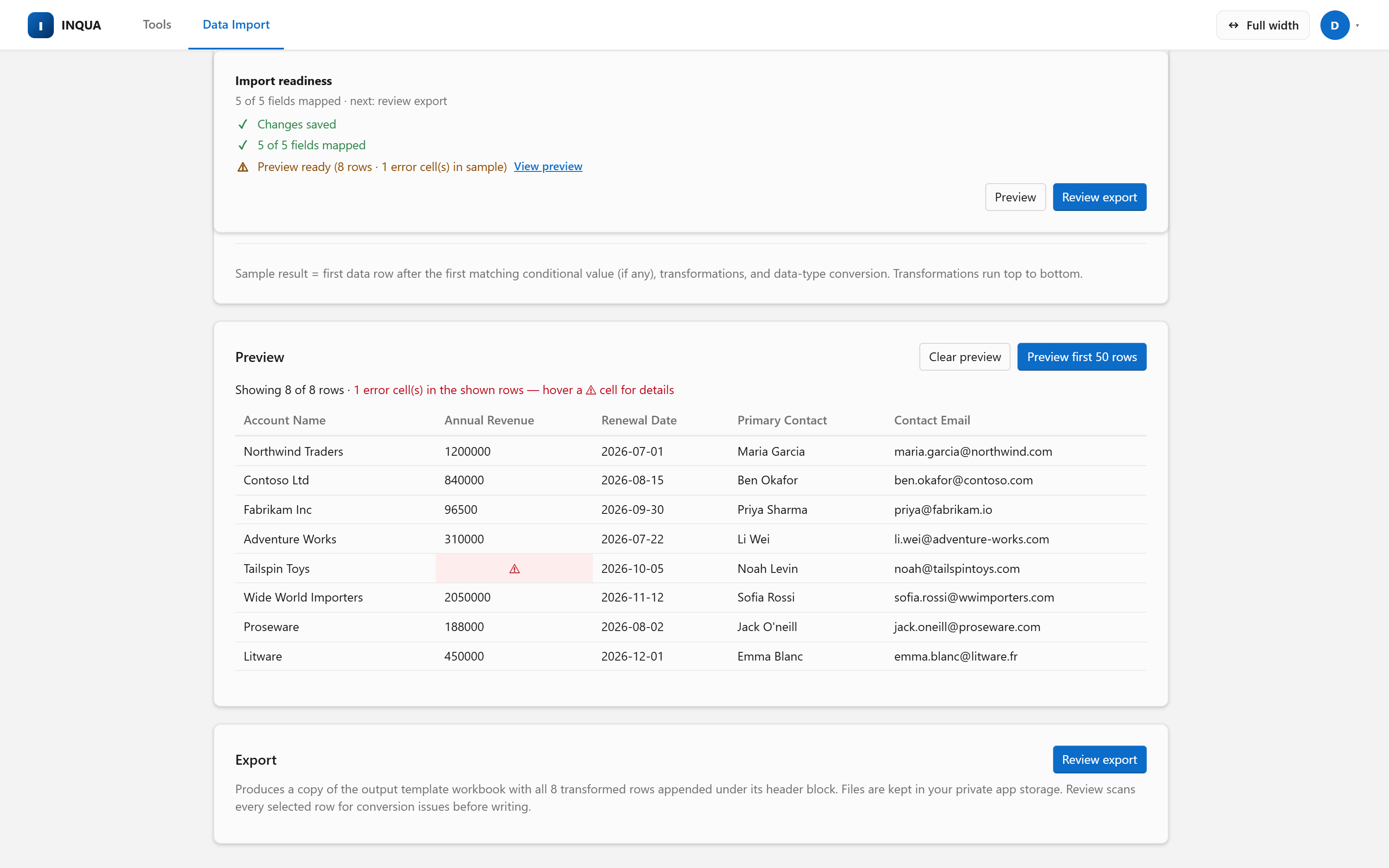
Preview of a Salesforce import: transformed rows with typed numbers and ISO dates, and one cell flagged with a conversion error before any record is written

Map and transform, then review every typed row — errors flagged before Salesforce sees them.

Salesforce data import tool for admins, operations, and migration teams

Prepare complex CSV and Excel files for Salesforce import

Join up to five source files, reuse mappings, transform and group rows, and review typed values plus conversion or restricted-picklist errors. Download a prepared load workbook, or separately confirm a Bulk API 2.0 insert or External-ID upsert.

Free during early access. Map a CSV or Excel file and download the reviewed workbook without connecting anything. Want a direct load instead? Connect your Salesforce after you sign up.
Start without connecting Salesforce
CSV, TXT, XLSX, and XLSM sources
Join up to five source files
Review every selected row before delivery
Data Import · Built for real source files

Prepare and validate Salesforce imports without spreadsheet surgery

Real source files never start clean. INQUA turns the spreadsheets you actually receive — multiple files, mixed encodings, duplicate rows, text dates, currency strings — into reviewed, typed, load-shaped data. And the whole configuration is saved, so next month's file takes minutes, not another afternoon in Excel.

The files you receive
companyacvrenewalprimary?
  ACME corp $120,00007/01/2026yes
Acme Corp$120,00007/01/2026Y
Bluewave <b>Ltd</b>1,52026-07-15
Duplicate rows per account Dates in two formats HTML fragments & stray spaces

Exports from other systems arrive like this. That's not a data problem — it's the normal state of source data.

The load file Salesforce accepts
Name Text AnnualRevenue Number RenewalDate__c Date Primary__c Boolean
Acme Corp1200002026-07-01TRUE
Bluewave Ltd1,5 ⚠2026-07-15FALSE
Selected-row preflight · 12,479 rows ready · 1 cell flagged before anything is written

De-duplicated to one row per account, genuinely typed cells — and the bad value caught at review, not inside Salesforce.

How Data Import works

How to import CSV or Excel data into Salesforce in three reviewed steps

Define the target shape once, map and transform your source, and review before anything is delivered. The target you start from sets the destination: an uploaded load workbook produces a typed workbook from your source data; a target generated from Salesforce object metadata can run a reviewed Bulk API 2.0 insert or External-ID upsert.

01

Shape the output

Upload the Excel load template your downstream process already uses — no Salesforce connection required — and label its header rows once, picking each column's data type. Or connect and generate a target straight from a live Salesforce object's createable field metadata. Every prepared workbook reproduces the uploaded template's header block and formatting.

02

Map and transform

Upload one source file, or join up to five by key columns with match rates shown before you commit. Columns auto-map by name and AI suggests the rest — from metadata only, never your row values. Then refine: constants, combined fields, conditional rules, thirteen chainable transformations including whole-value mapping, and row selection that filters, de-duplicates, or flattens grouped rows.

03

Review, then deliver

Preview typed rows with per-cell errors flagged — conversion failures and values a field's picklist won't accept. Prepared workbooks run a full selected-row preflight scan first. Salesforce uploads show the exact target object and row count before a separate confirm, insert new records or upsert by an External ID — never delete — and are refused outright while any cell error remains. Even an accidental identical re-upload is caught and blocked.

See it in action

See the Salesforce data import workflow, step by step

Five screens from the real product — the exact flow you'd follow with your own files, from load template to reviewed import output.

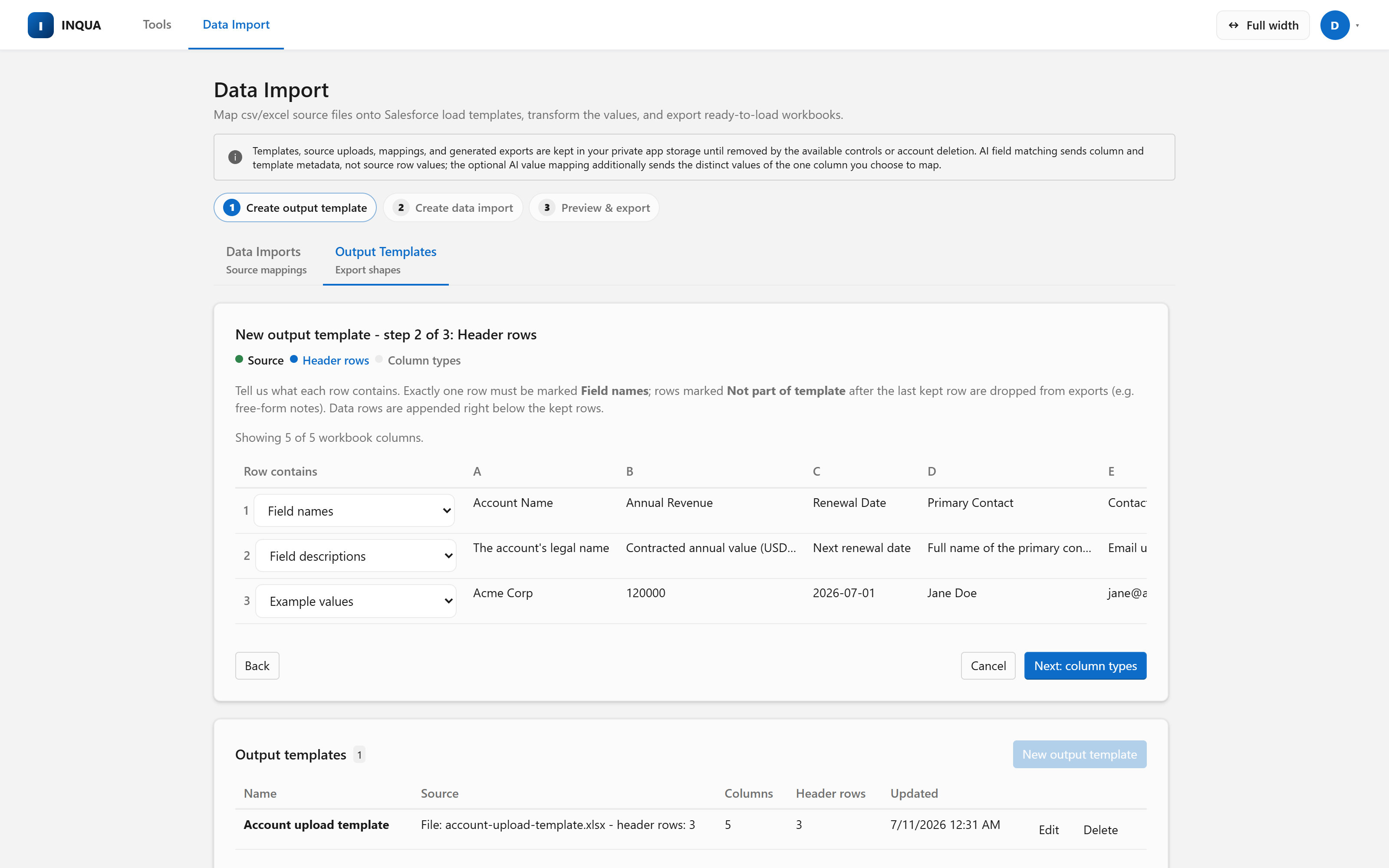
Output template wizard labeling the header rows of an uploaded Excel Salesforce load template
1 · Shape the output. Upload the Excel load template you already use and label its rows once — field names, descriptions, example values.
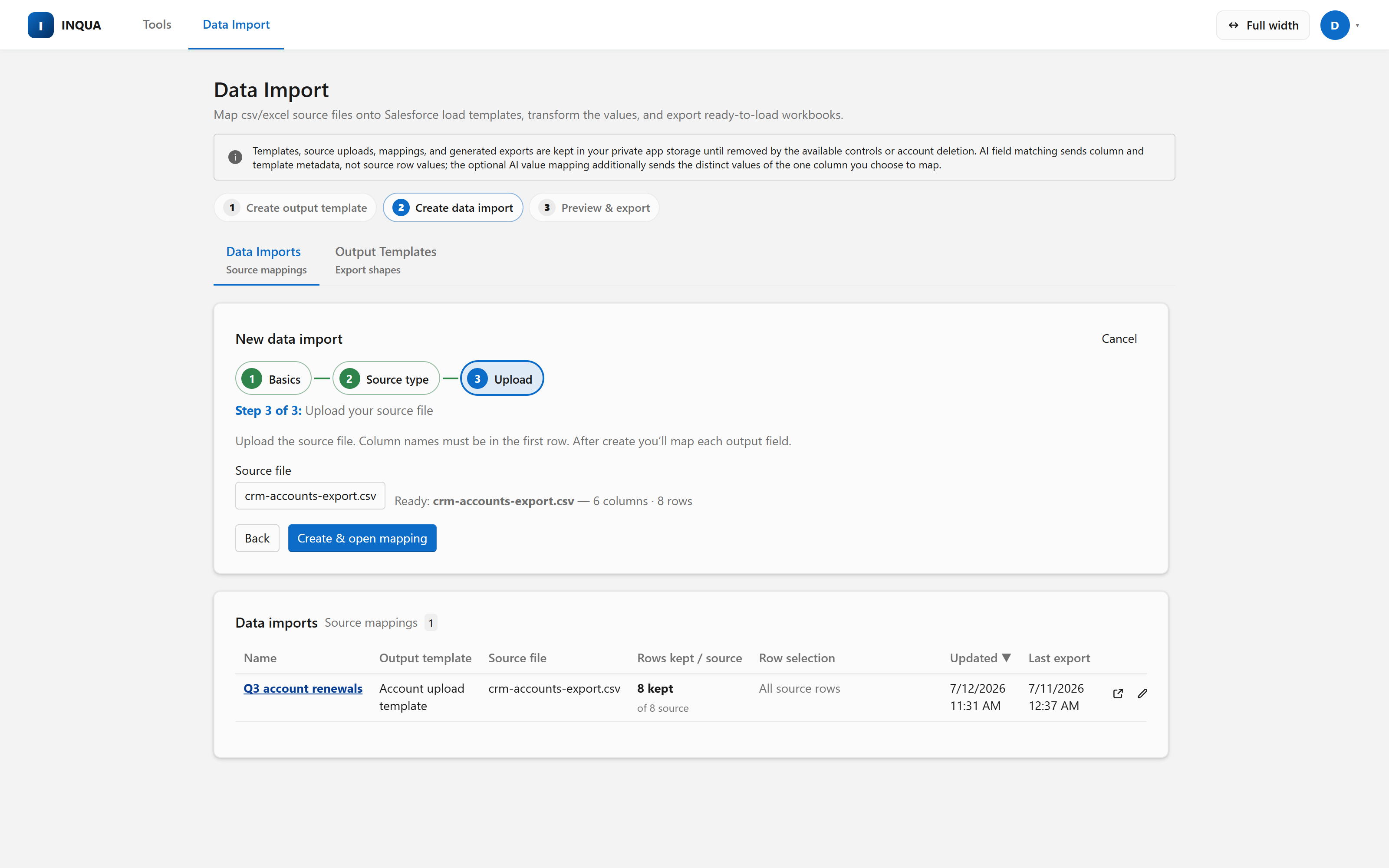
Uploading a CSV source file with detected columns and sample rows ready for mapping
2 · Create the import. Name it, pick the template, upload your CSV or Excel source — headers are validated on the spot.
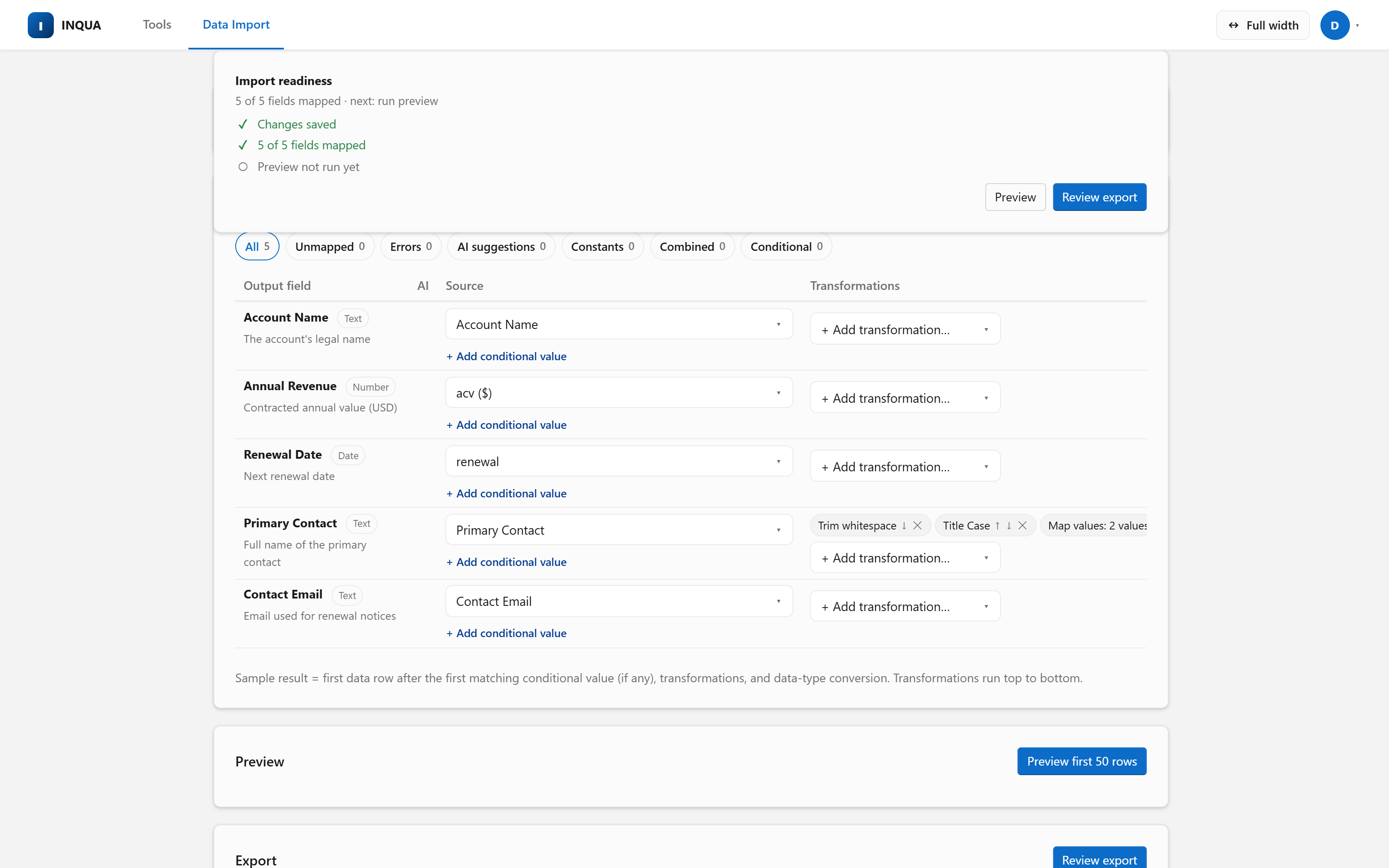
Mapping CSV columns to Salesforce load template fields with chained transformations like Trim whitespace and Title Case
3 · Map and transform. Columns auto-map by name; the rest take two clicks. Chain transformations — here Trim whitespace and Title Case — per column.
Typed preview of a Salesforce import: converted numbers and dates with one conversion error flagged per cell
4 · Preview typed rows. Real numbers and ISO dates, names cleaned up — and the one bad value flagged with a per-cell error, not buried in a results file.
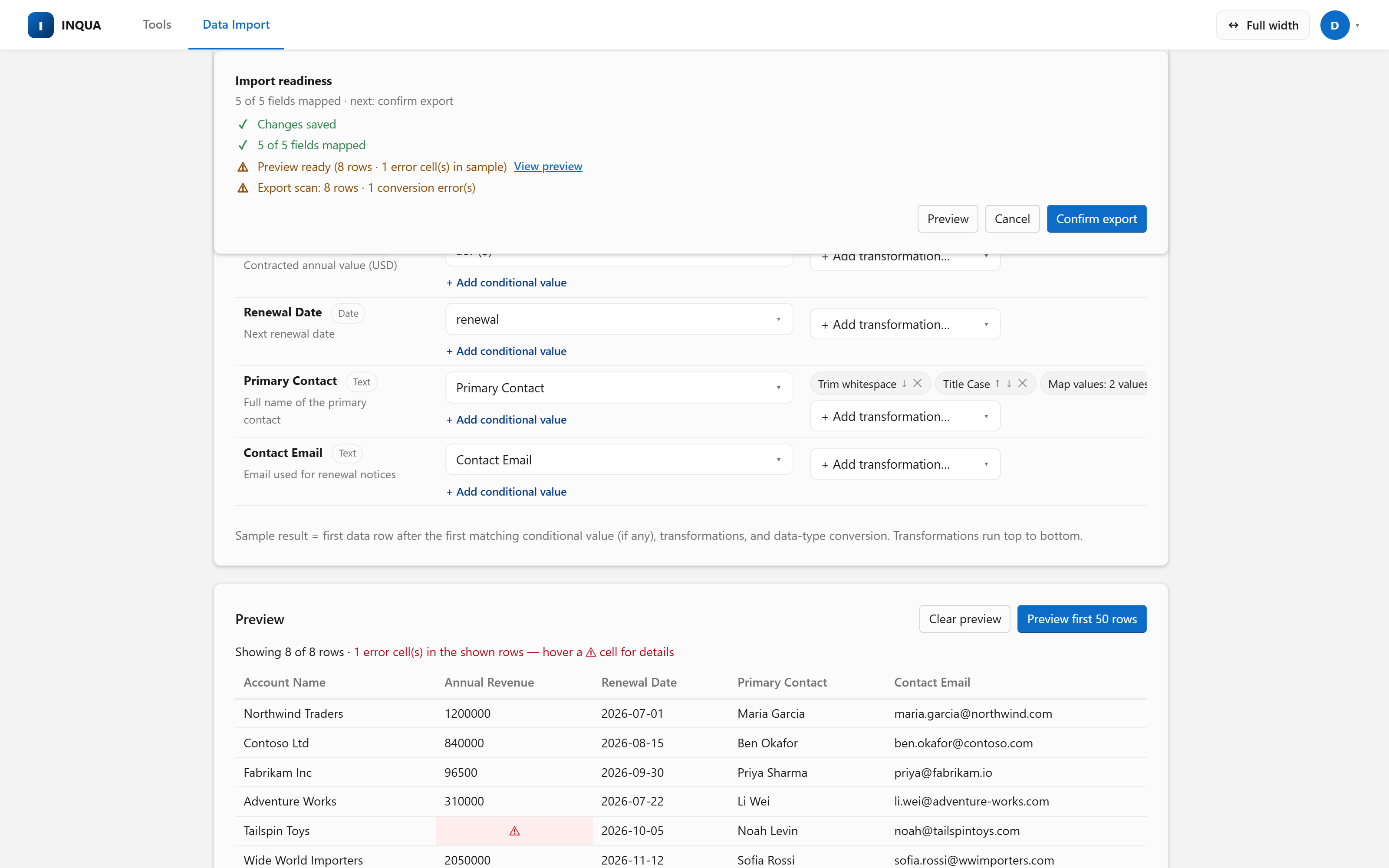
Review before workbook generation: selected-row preflight reporting rows to write and flagged cells before explicit confirmation
5 · Review, then deliver. A selected-row preflight scan reports exactly what will be written — 8 rows, 1 cell flagged — before you confirm.
Two distinct delivery paths

Prepare a Salesforce load workbook or run a reviewed bulk import

Both paths use the same mapping, transformation, selection, and validation pipeline, but the target type decides the final step. This product does not export records from Salesforce.

Download a prepared load workbook

Upload the Excel load template your process already trusts, map your CSV or Excel source onto it, and generate a typed workbook from those uploaded files. The original header block and formatting are preserved. No Salesforce connection or record retrieval is involved; you load the finished workbook with the approved tool your process already uses.

Or connect and load directly

Build a target from a createable Salesforce object's metadata and accepted picklist values. After preview and review, run a separately confirmed Bulk API 2.0 insert or an upsert matched on an External ID — never a delete. For a round trip, create a Salesforce re-export elsewhere, upload it here, and the Reverse workflow can reshape it with the assigned record IDs for follow-on loads.

Preparing a workbook and loading directly are intentionally separate target types: workbook-backed imports do not write to Salesforce, and Salesforce-object imports do not masquerade as record exports.

When the file is difficult

Joins, transformations, and row rules — without the spreadsheet surgery

Open only the options a difficult migration needs, and leave the rest alone for a simple file.

Join

Up to five source files

A primary file plus four lookups, joined on key columns — with match rates and unmatched samples shown before the import exists.

Transform

Thirteen chainable transformations

Trim, case, find & replace, exact-format date parsing, whole-value mapping, and more — ordered per column, with a live sample of the result.

Select

Filter, de-duplicate, flatten

Keep matching rows, collapse groups to one row each, and pull a value from a sibling row — fourteen operators, all reviewed before delivery.

Map a real file in the next ten minutes

No Salesforce connection needed — upload a load template, map a CSV or Excel file, and download the reviewed workbook.

Start free — no connection neededOr see every import option
Choose the right loader

Already using Salesforce Data Loader?

Keep it for record exports, updates by record ID, deletes, and command-line automation — INQUA does none of those. Reach for INQUA when the hard part happens before the load: joining files, cleaning values, and catching errors that would otherwise come back in a results file.

Why INQUA

Review Salesforce import data before any records are written

Speed only helps if you believe the result. The default Data Import workflow makes the source, row logic, transformed values, validation, and final delivery boundary visible.

Transparent by construction

Every import shows mapped fields, transformed samples, kept rows, configuration warnings, and per-cell errors before delivery.

Clear storage boundaries

Data Import uploads, templates, prepared workbooks, and saved recipes are private to your account and stay separate from other users' files.

Writes are explicit

Preparing a workbook never writes to Salesforce. A direct load runs only after you review and explicitly confirm — insert or External-ID upsert, never a delete — and an accidental identical repeat is refused.

Minutes to value, not months

Upload and map in the browser with no installer and no Salesforce connection required. Connect only for object-metadata targets or a reviewed direct load.

Who it's for

Built for the people who prepare and load Salesforce data

Admins carrying the import queue, operations teams standardizing recurring source files, and consultants migrating whole books of business. If that sounds familiar, it was built for you.

Use it for recurring Salesforce imports, data preparation for Salesforce migrations, and one-time cleanup-heavy loads across accounts, contacts, leads, tasks, and custom objects.

Loading data

Past the Import Wizard, not ready for Data Loader

The Data Import Wizard accepts CSV files, supports a defined object set, and caps an import at 50,000 records. Data Loader covers broader bulk DML, record export, database and file inputs, and automated processing.

INQUA focuses on joining, transforming, grouping, and validating source files. It scans every selected output row for conversion and restricted-picklist errors before a prepared workbook or direct load can proceed.

Preparing data

Your "import" is really an hour of Excel surgery

Merging exports with VLOOKUP, trimming whitespace, fixing dates, de-duplicating contacts, re-checking it all after every mistake — the load itself is the easy part; the preparation eats the afternoon.

Joins, transforms, and row rules live in the import itself — no org connection needed. Next month, replace the source file and the whole configuration reruns.

Migrating data

Related source rows need to become one Salesforce record

Households, accounts, contacts, and legacy exports often spread one destination record across several rows or files. A flat loader cannot decide which row should win or where a sibling value belongs.

Group rows, prefer or require a matching row, and pull a mapped value from a specific or condition-matched sibling before the file reaches Salesforce.

A direct load runs as the signed-in user, names the target object and exact row count, blocks cell errors, and requires a separate confirmation. The workbook path never connects to Salesforce at all.

Pricing

Free during early access

INQUA is free while in early access — every tool included. When billing launches it will be one simple per-user price — well below platform AI tiers, BI licenses, and per-seat cloud loaders — and early-access users hear about launch pricing first.

$0/user during early access
  • The full Data Import workbench: reusable targets, multi-file joins, advanced mapping, row rules, thirteen transforms, typed validation, prepared workbooks, and optional confirmed Bulk API loads
  • The separate AI SOQL & Dashboards view: plain-English questions, visible read-only queries, saved conversations, and refreshable dashboard widgets
  • No credit card, no commitment — disconnect any time. One simple per-user price at launch, announced to early-access users first
Create your account
Honest by default

What INQUA doesn't do

Where the line sits, before you find out the hard way.

Never deletes Salesforce records

Data Import inserts new records or updates existing ones by an External ID you choose (upsert). Deletes do not exist in the product; use the tool your change-control process already trusts for that.

Doesn't export records from Salesforce

The prepared-workbook path reshapes files that you upload; it does not retrieve CRM records. Reverse also starts with a Salesforce re-export that you create elsewhere.

Doesn't run unattended or scheduled jobs

Every import runs on demand, after you review and confirm it. If you need recurring multi-system syncs, a dedicated ETL platform is the right fit.

Security

Safe by design, not by promise

Security isn't a feature we added; it's how INQUA is built. Workbook preparation stays separate from Salesforce. Direct Data Import writes sit behind a reviewed confirmation — insert or External-ID upsert, never a delete.

  • Connection is OAuth — never your Salesforce password — and your refresh token is stored encrypted at rest.
  • Every direct load runs as you, under your own OAuth token — never a service account — so your Salesforce profiles and permission sets decide exactly what can be written.
  • Data Import's AI field matching sends headers and template metadata — never source row values. The opt-in AI value mapping sends only the distinct values of the single column you're mapping, and says so before you click.
  • Any Salesforce load is reviewed, explicitly confirmed, and limited to insert or External-ID upsert — never delete.
Get started

Build your first import without connecting Salesforce

Upload a load template, map a source file, validate the selected rows, and prepare a typed workbook. Connect later only if you want object-metadata targets or a direct load.

Create your account
No credit card. Works with API-enabled Salesforce editions.
FAQ

Salesforce data import FAQ

Can I import Excel files into Salesforce without converting them to CSV?

Yes. Data Import reads .xlsx and .xlsm workbooks natively, along with .csv and .txt files. It detects common text encodings, drops blank rows, and reads cached Excel dates, numbers, and formula values. Legacy .xls files need a one-time re-save as .xlsx.

Does this product export records from Salesforce?

No. It does not retrieve Salesforce records and export them to CSV or Excel. The workbook path generates a typed, load-shaped workbook from source files and a load template that you uploaded. The direct path sends those prepared rows into Salesforce. Reverse requires you to upload a Salesforce re-export that you created elsewhere.

Do I need to connect my Salesforce org to use the Data Import tool?

No. Upload the Excel load template your process already uses, map your source files onto it, and download the reviewed, typed workbook. Connecting Salesforce adds a separate target type built from createable object metadata and accepted picklist values, with optional Bulk API 2.0 inserts and External-ID upserts.

Can Data Import update or delete my Salesforce records?

It can update — but only as an upsert matched on an External ID field you pick, so re-running a load updates existing records instead of duplicating them. It can never delete. Every upload still requires a preview, a review naming the target object and exact row count, and a separate explicit confirmation — and a payload identical to your last upload is refused unless you explicitly allow the repeat.

Can I combine multiple source files into one import?

Yes. A primary file drives the rows and up to four lookup files join by key columns — with match percentages, empty-key counts, and sample unmatched keys shown before the import is created, so you see data-quality problems before a single record exists.

What does AI field matching send to the AI provider?

Field matching sends output-field metadata and source header names — never source row values. The opt-in value-matching tool is a separate disclosed action that sends the distinct values of one chosen source column plus the target's accepted picklist values. Suggestions remain unsaved and reviewable.

Is INQUA a Salesforce Data Loader alternative?

For preparation-heavy inserts and External-ID upserts, yes. INQUA adds native Excel input, multi-file joins, reusable mappings, transformations, row rules, and typed preflight review. Keep Salesforce Data Loader for record exports, update by record ID, delete or hard delete, and command-line automation.

What Data Import files does INQUA store?

Data Import stores your private source uploads, output templates, prepared workbooks, and saved recipes until you remove them. Account deletion removes the active application copies.
Get started

Ready for your first reviewed import?

Create an account and start with just a file — no Salesforce connection required. Build a reusable mapping, validate the selected rows, and prepare a typed workbook; connect later for an optional direct insert or External-ID upsert.

Create your account
Free during early access · No credit card · Prepared workbooks · Confirmed direct loads, never a delete